> For the complete documentation index, see [llms.txt](https://docs.flexikanban.ai/llms.txt). Markdown versions of documentation pages are available by appending `.md` to page URLs; this page is available as [Markdown](https://docs.flexikanban.ai/standard-kanban/configure-column/how-to-set-column-groups.md).
# How to Set Column Groups
Columns in Kanban Dashboard can be put into groups.
{% hint style="info" %}
This is not required. Groups are commonly used for visual and informational purposes.
{% endhint %}
To manage groups on your dashboard you need to select one of columns (click on column header). Group form will be shown in sidebar.
Select a group which current column will belong to or click "new" link to create a new group:
 ### Adding new group
After clicking "new" link a "Create new group" dialog popup will appear. You required to give group a name and you may change group columns set and order:
### Adding new group
After clicking "new" link a "Create new group" dialog popup will appear. You required to give group a name and you may change group columns set and order:
 Click "Create" button to apply changes. New group will be created and selected:
 {% hint style="warning" %}
Note: if you select non-neighbor columns to be in the group, but they will be placed together.
{% endhint %}
### Adding or moving column to existing group
There are two ways to do this:
1. Select a column (belonging to any group or not). Then select a group in the "Group" picklist in the sidebar:
{% hint style="warning" %}
Note: if you select non-neighbor columns to be in the group, but they will be placed together.
{% endhint %}
### Adding or moving column to existing group
There are two ways to do this:
1. Select a column (belonging to any group or not). Then select a group in the "Group" picklist in the sidebar:
 The column will be added to selected group and moved to the last position in it:
 2. Click a proper group header to see Group Properties sidebar. Move columns in the column picker to "Columns in Group" section:
 ### Removing column from the group
There are three ways to do this:
1. Select a column. Select "--None--" in the "Group" picklist:
### Removing column from the group
There are three ways to do this:
1. Select a column. Select "--None--" in the "Group" picklist:
 Column will be moved out of group to the first position after it:
 2. Click a proper group header to see Group Properties sidebar. Remove columns in the column picker from "Columns in Group" section:
 3. Delete a group without deleting columns (see below).
### Deleting groups
To delete a group select it by clicking a group header and click "Delete" button on the toolbar:
3. Delete a group without deleting columns (see below).
### Deleting groups
To delete a group select it by clicking a group header and click "Delete" button on the toolbar:
 Or click "Delete Group" button at the group header:
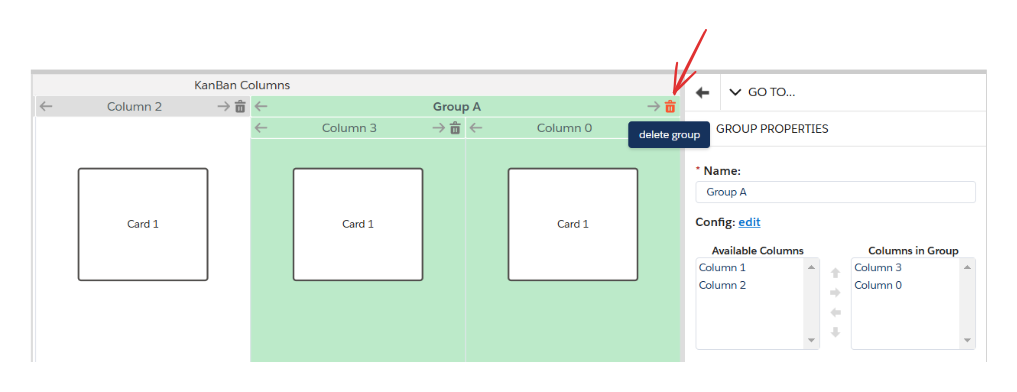 A dialog popup will appear. Select an appropriate option and click "OK" button:
 If you select "Delete group and all it's nested columns", a whole group and columns that belong to it will be deleted.
If you delete only group, it's columns will remain on the same positions on dashboard.
### Configuring groups
Select a group and click "edit" link near the "Config" label:
If you select "Delete group and all it's nested columns", a whole group and columns that belong to it will be deleted.
If you delete only group, it's columns will remain on the same positions on dashboard.
### Configuring groups
Select a group and click "edit" link near the "Config" label:
 An "Edit Group Config" dialog popup will be shown. Select "Header Group Configuration" tab:
 * Set CSS styles of group header and container.
* Check "Collapsible?" to give a group proper ability.
* "Collapsed" checkbox will be shown only if "Collapsible?" is checked and allows to set default column state (collapsed or not)
Add Cells:
* Select Type (text/link/icon/menu).
* Set ID, Value, CSS styles.
* Configure Handler, if necessary.
* Click "Apply" to save changes in group configuration and save dashboard.
Select "Filters Configuration" tab:
* Set CSS styles of group header and container.
* Check "Collapsible?" to give a group proper ability.
* "Collapsed" checkbox will be shown only if "Collapsible?" is checked and allows to set default column state (collapsed or not)
Add Cells:
* Select Type (text/link/icon/menu).
* Set ID, Value, CSS styles.
* Configure Handler, if necessary.
* Click "Apply" to save changes in group configuration and save dashboard.
Select "Filters Configuration" tab:
 * Select filtering:
* Allowed - column can be filtered by both default (system) data sources and custom filters
* Allowed only Default Sources - column can be filtered only by default (system) data sources
* Allowed only Custom Sources - column can be filtered only by custom filters
* Click "Apply" button to save changes in group configuration and save dashboard.
---
# Agent Instructions
This documentation is published with GitBook. GitBook is the documentation platform designed so that both humans and AI agents can read, navigate, and reason over technical content effectively. Learn more at gitbook.com.
## Querying This Documentation
If you need additional information that is not directly available in this page, you can query the documentation dynamically by asking a question.
Perform an HTTP GET request on the current page URL with the `ask` query parameter, and the optional `goal` query parameter:
```
GET https://docs.flexikanban.ai/standard-kanban/configure-column/how-to-set-column-groups.md?ask=&goal=
```
`ask` is the immediate question: it should be specific, self-contained, and written in natural language.
`goal` is optional and describes the broader end goal you are ultimately trying to accomplish on behalf of the user. GitBook uses it to tailor the answer towards what is most useful for that goal.
The response will contain a direct answer to the question and relevant excerpts and sources from the documentation.
Use this mechanism when the answer is not explicitly present in the current page, you need clarification or additional context, or you want to retrieve related documentation sections.
* Select filtering:
* Allowed - column can be filtered by both default (system) data sources and custom filters
* Allowed only Default Sources - column can be filtered only by default (system) data sources
* Allowed only Custom Sources - column can be filtered only by custom filters
* Click "Apply" button to save changes in group configuration and save dashboard.
---
# Agent Instructions
This documentation is published with GitBook. GitBook is the documentation platform designed so that both humans and AI agents can read, navigate, and reason over technical content effectively. Learn more at gitbook.com.
## Querying This Documentation
If you need additional information that is not directly available in this page, you can query the documentation dynamically by asking a question.
Perform an HTTP GET request on the current page URL with the `ask` query parameter, and the optional `goal` query parameter:
```
GET https://docs.flexikanban.ai/standard-kanban/configure-column/how-to-set-column-groups.md?ask=&goal=
```
`ask` is the immediate question: it should be specific, self-contained, and written in natural language.
`goal` is optional and describes the broader end goal you are ultimately trying to accomplish on behalf of the user. GitBook uses it to tailor the answer towards what is most useful for that goal.
The response will contain a direct answer to the question and relevant excerpts and sources from the documentation.
Use this mechanism when the answer is not explicitly present in the current page, you need clarification or additional context, or you want to retrieve related documentation sections.