> For the complete documentation index, see [llms.txt](https://docs.flexikanban.ai/llms.txt). Markdown versions of documentation pages are available by appending `.md` to page URLs; this page is available as [Markdown](https://docs.flexikanban.ai/standard-kanban/configure-card/how-to-configure-card-layout.md).
# How to configure Card Layout
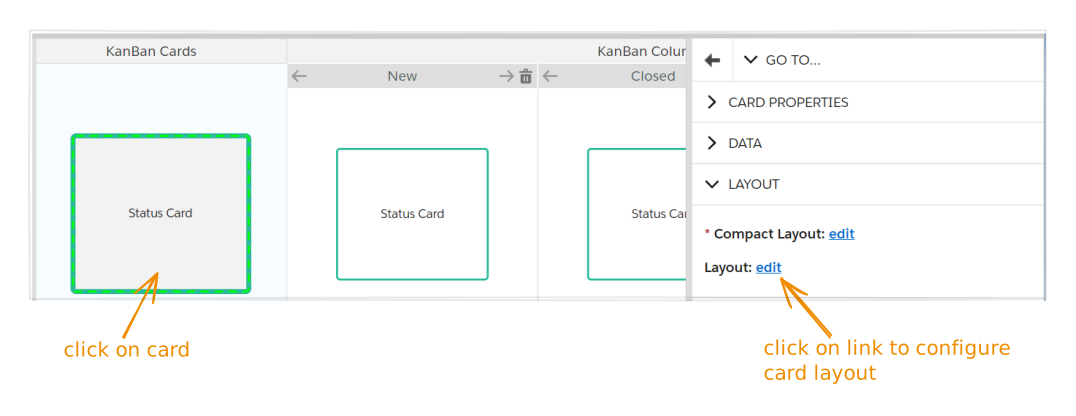
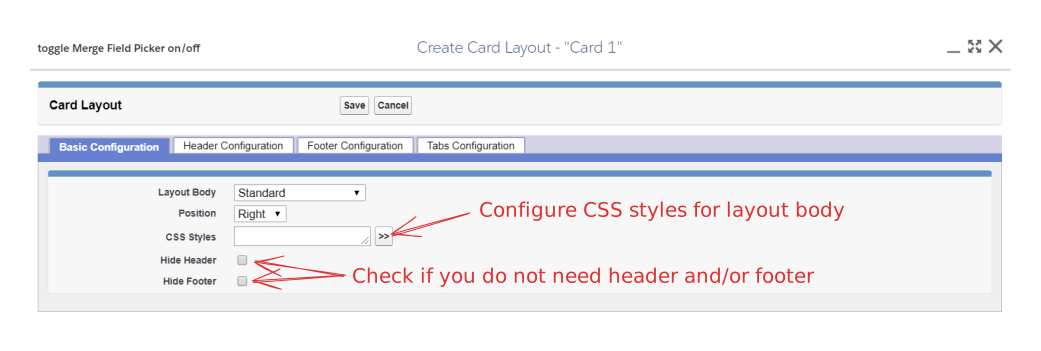
Go to "Layout" section of card properties at the right sidebar. Select Layout and click on link "create" ("edit", if card already has layout configured) to open **Card Layout** dialog popup.
### Basic Configuration
#### Layout Body
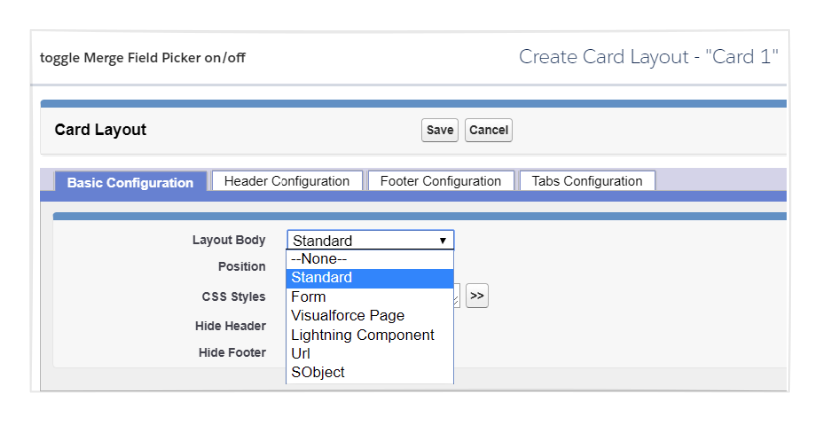
Select layout body "**None**" in case you do not want to show sidebar (or modal popup) with card details when card is clicked.
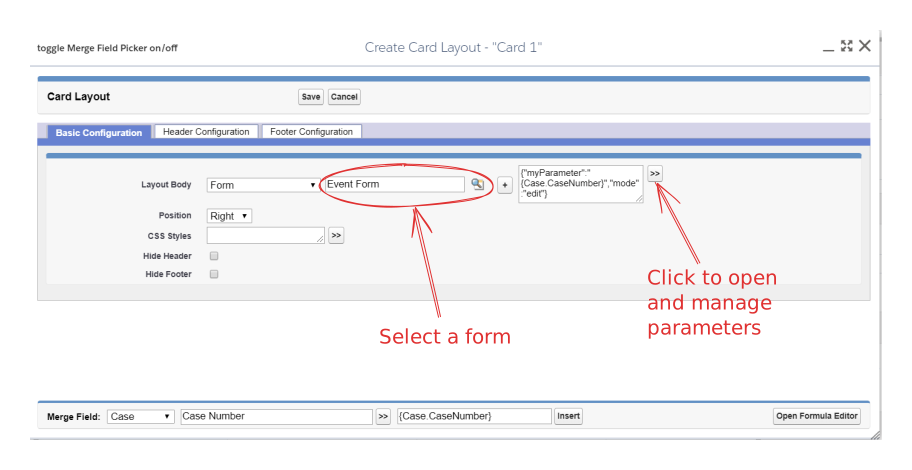
Select Layout body "**Form**" if you need some specific form to be shown. Choose [form](/components/forms.md) and specify parameter(s) if necessary. For example:
Select Layout Body "**Visualforce Page**" to show some existing page from current organization. Choose a page in the proper field and set parameters, if needed.
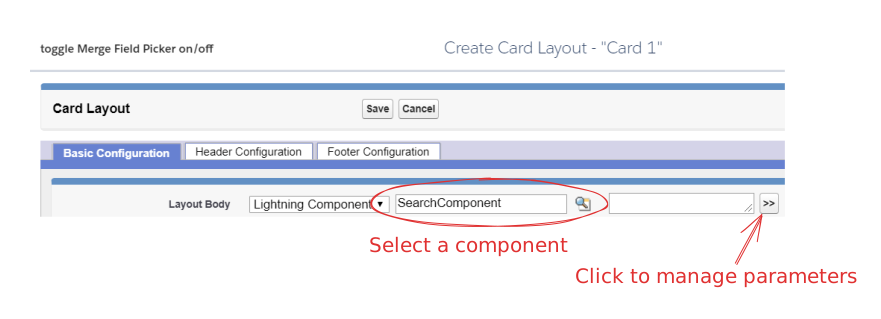
Set Layout Body "**Lightning Component**" to embed some component. Select component and set parameters, if necessary:
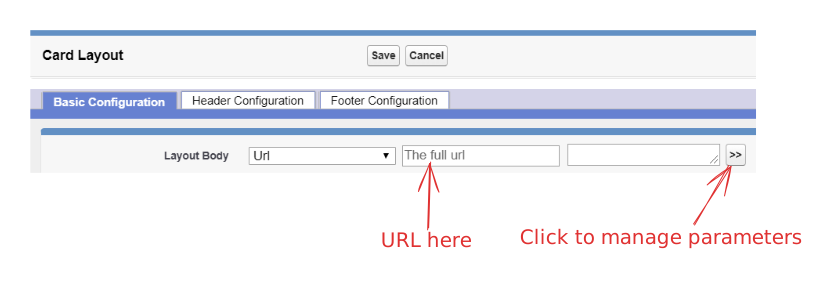
Select Layout Body "**Url**" to embed some other page. Fill in proper field with some external URL and specify parameters, if necessary.
{% hint style="warning" %}
Only URLs to secure sites are allowed. If specify non-secure URL the site will be blocked by system.
{% endhint %}
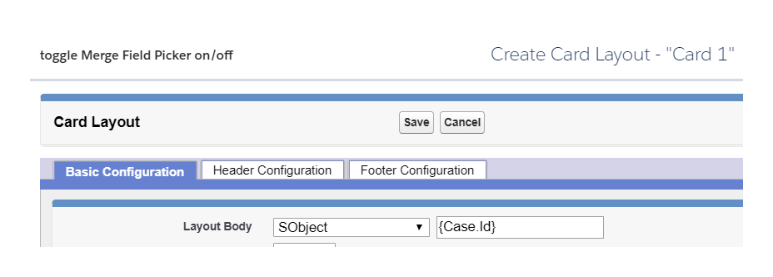
Select Layout Body "**SObject**" to show current object standard details. You need to set Record ID (e.g., select {Case.Id} in the [merge field picker](/standard-kanban/tools/using-merge-field-picker.md) to specify ID of record represented by current card).
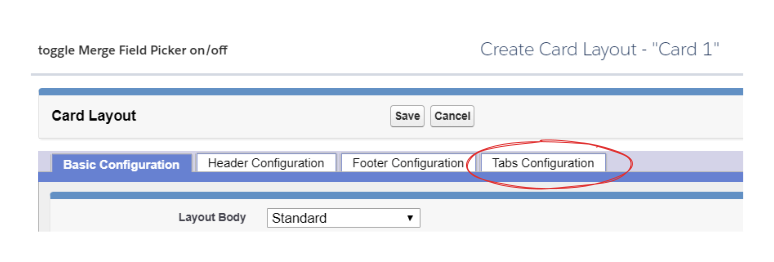
Select Layout Body "**Standard**" to show multiple tabs in layout. Configure them on the "Tabs configuration" subtab that will appear:
#### Tabs Configuration
Open "**Tabs Configuration**" subtab. "**SObject**" tab is preset to show current object standard details.
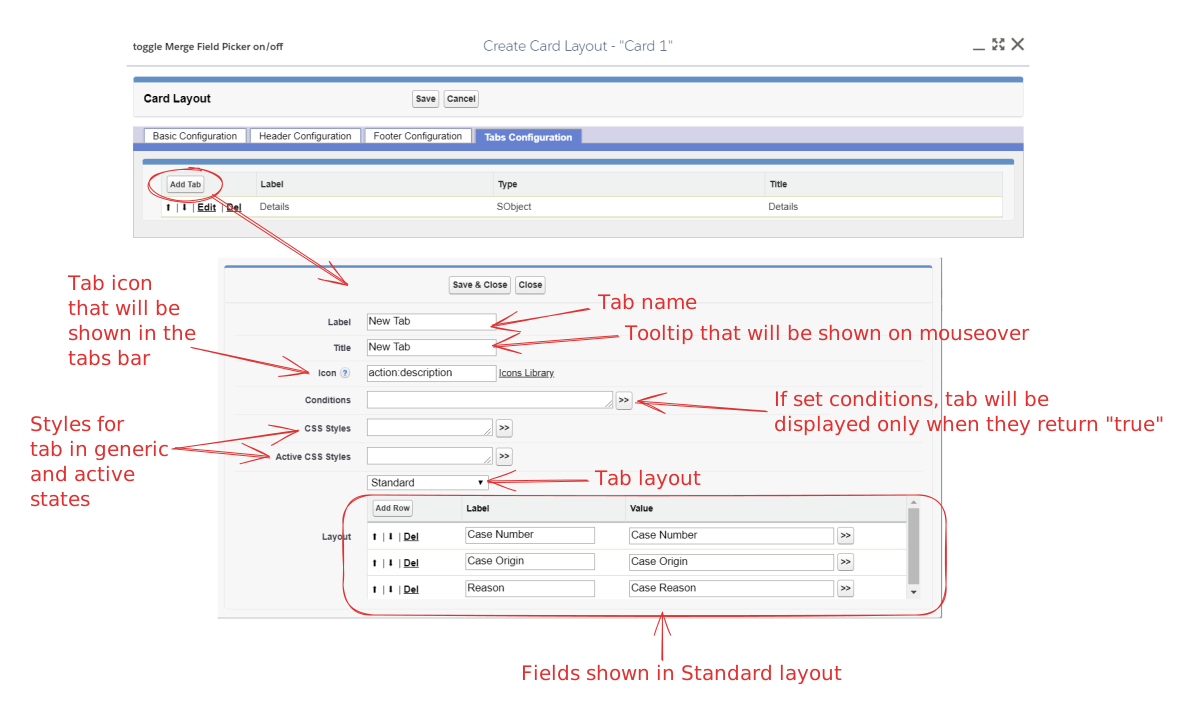
Click "**Add tab**" button to open config dialog popup. Enter label and title in proper field, select icon using "**Icon Library**". Configure "**Conditions**", CSS Styles for tab in generic (inactive) and active states if necessary.
Select tab layout type in "**Layout**" field. Tab layouts are the same as described above, except the "**Standard**" one.
"**Standard**" layout type allows user to configure custom set of fields to display. Add fields under each other by adding rows to layout, set labels and values, rearrange rows, if necessary.
#### Card Layout Positions
Select layout position in the proper picklist:
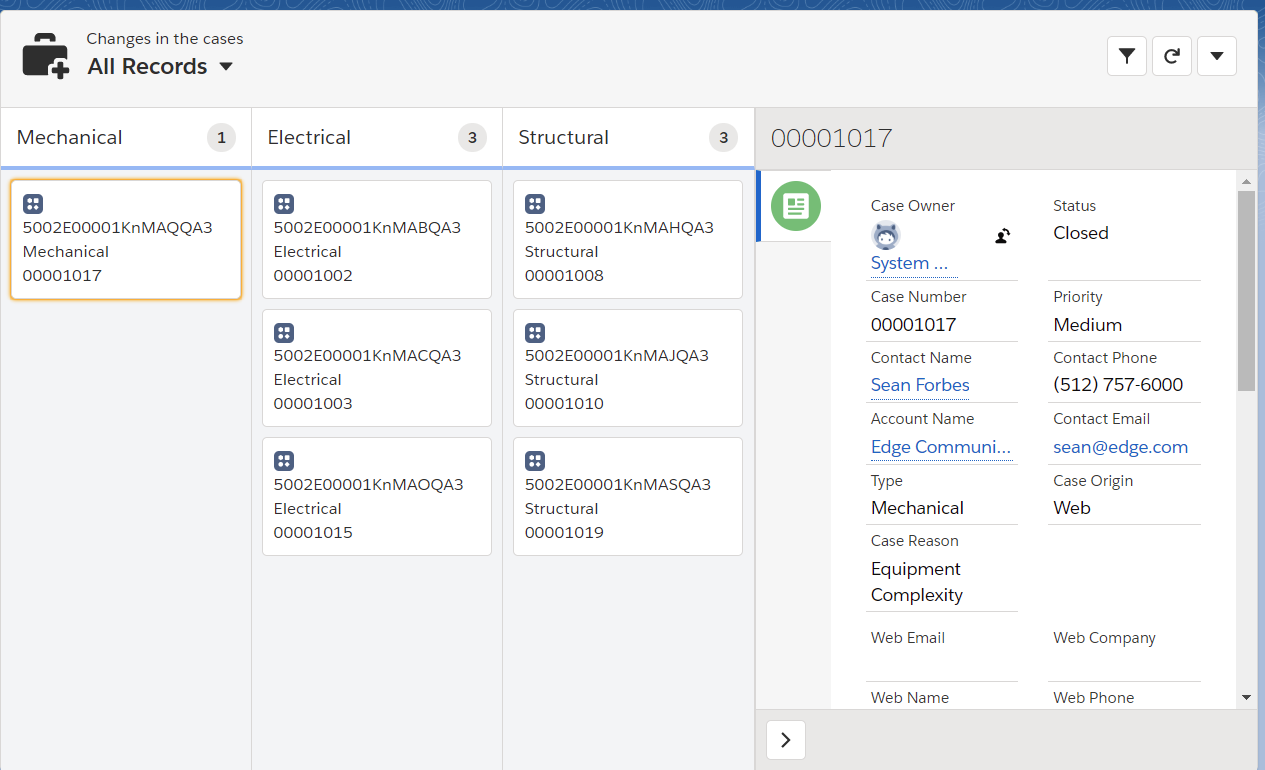
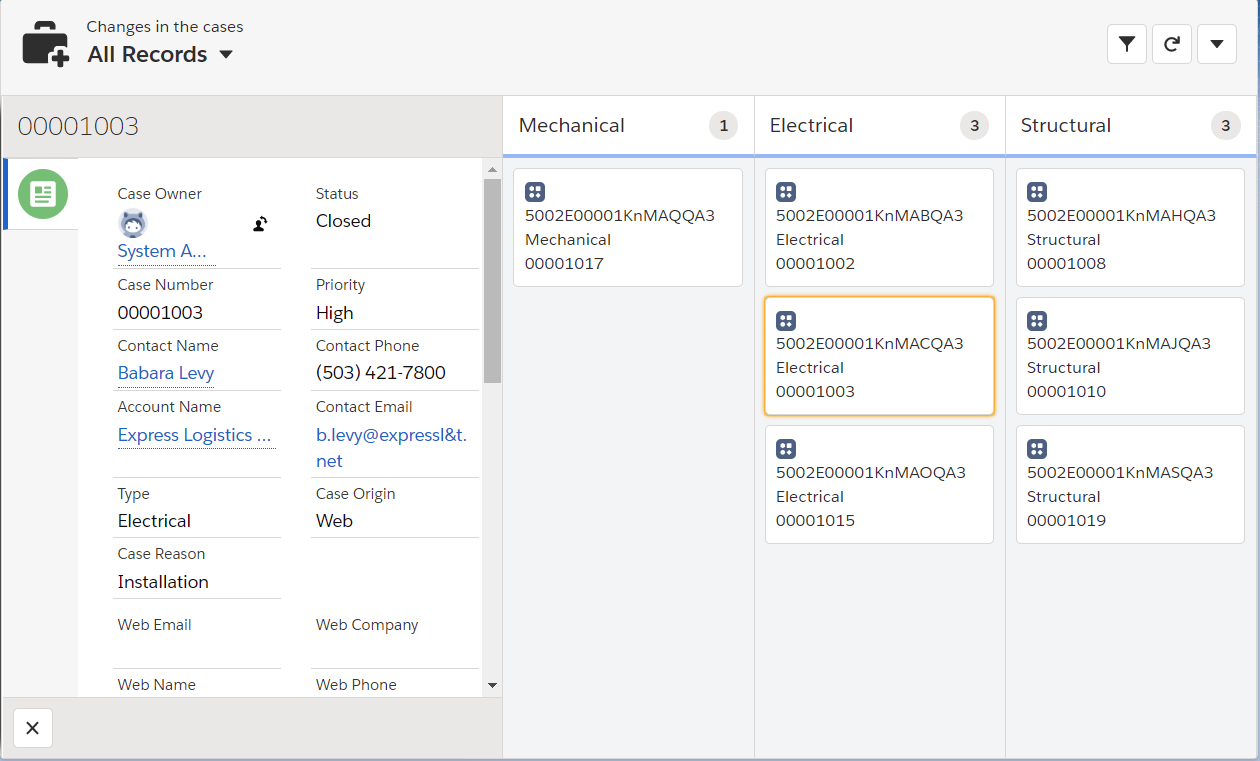
Position "**Right**" will cause layout be shown as right sidebar:
Position "**Left**" will cause layout be shown as left sidebar:
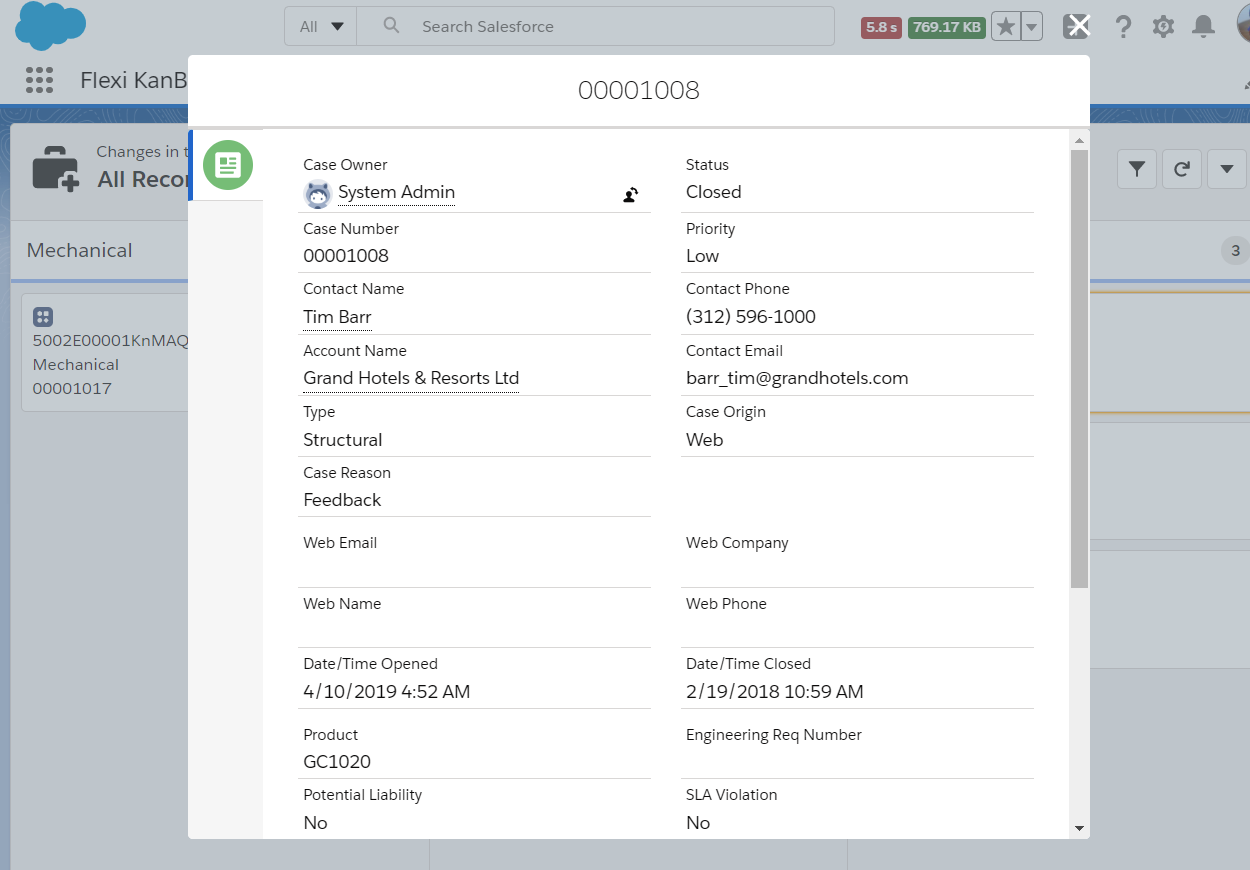
Position "**Modal**" will cause layout be shown as modal popup:
#### Other Settings
{% hint style="info" %}
In case if you hid header or footer, you don't need to configure them as described below.
{% endhint %}
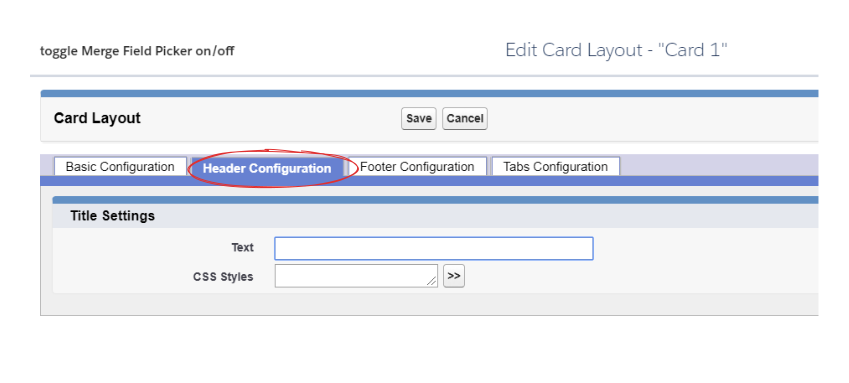
### Header Configuration
Go to "**Header Configuration**" tab to open "**Title Settings**".
Fill in "**Text**" field (static text, merge fields or formulas) and configure [CSS Styles](/standard-kanban/tools/configuring-css-styles.md).
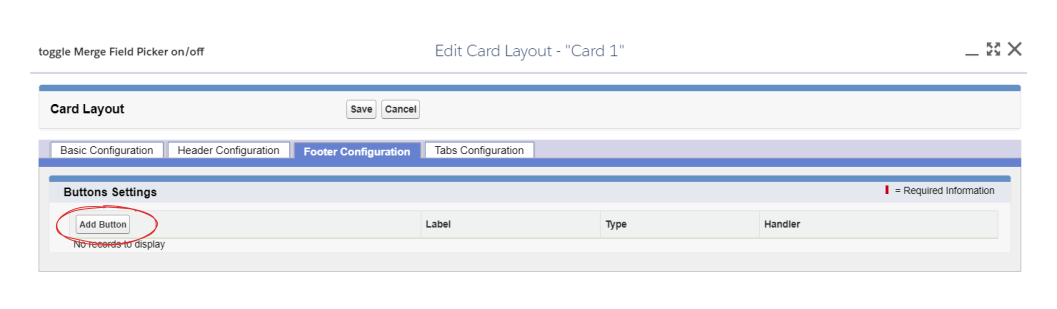
### Footer Configuration
Open "**Footer Configuration**" tab and click "**Add Button**" to configure [buttons](/standard-kanban/tools/configuring-rows-cells-menus-and-buttons.md), if needed.
Click "**Save**" to apply changes in card layout configuration and save dashboard.
---
# Agent Instructions
This documentation is published with GitBook. GitBook is the documentation platform designed so that both humans and AI agents can read, navigate, and reason over technical content effectively. Learn more at gitbook.com.
## Querying This Documentation
If you need additional information that is not directly available in this page, you can query the documentation dynamically by asking a question.
Perform an HTTP GET request on the current page URL with the `ask` query parameter, and the optional `goal` query parameter:
```
GET https://docs.flexikanban.ai/standard-kanban/configure-card/how-to-configure-card-layout.md?ask=&goal=
```
`ask` is the immediate question: it should be specific, self-contained, and written in natural language.
`goal` is optional and describes the broader end goal you are ultimately trying to accomplish on behalf of the user. GitBook uses it to tailor the answer towards what is most useful for that goal.
The response will contain a direct answer to the question and relevant excerpts and sources from the documentation.
Use this mechanism when the answer is not explicitly present in the current page, you need clarification or additional context, or you want to retrieve related documentation sections.
 ### Basic Configuration
#### Layout Body
### Basic Configuration
#### Layout Body
 Select layout body "**None**" in case you do not want to show sidebar (or modal popup) with card details when card is clicked.
Select Layout body "**Form**" if you need some specific form to be shown. Choose [form](/components/forms.md) and specify parameter(s) if necessary. For example:
Select layout body "**None**" in case you do not want to show sidebar (or modal popup) with card details when card is clicked.
Select Layout body "**Form**" if you need some specific form to be shown. Choose [form](/components/forms.md) and specify parameter(s) if necessary. For example:
 Select Layout Body "**Visualforce Page**" to show some existing page from current organization. Choose a page in the proper field and set parameters, if needed.
Set Layout Body "**Lightning Component**" to embed some component. Select component and set parameters, if necessary:
Select Layout Body "**Visualforce Page**" to show some existing page from current organization. Choose a page in the proper field and set parameters, if needed.
Set Layout Body "**Lightning Component**" to embed some component. Select component and set parameters, if necessary:
 Select Layout Body "**Url**" to embed some other page. Fill in proper field with some external URL and specify parameters, if necessary.
 {% hint style="warning" %}
Only URLs to secure sites are allowed. If specify non-secure URL the site will be blocked by system.
{% endhint %}
Select Layout Body "**SObject**" to show current object standard details. You need to set Record ID (e.g., select {Case.Id} in the [merge field picker](/standard-kanban/tools/using-merge-field-picker.md) to specify ID of record represented by current card).
{% hint style="warning" %}
Only URLs to secure sites are allowed. If specify non-secure URL the site will be blocked by system.
{% endhint %}
Select Layout Body "**SObject**" to show current object standard details. You need to set Record ID (e.g., select {Case.Id} in the [merge field picker](/standard-kanban/tools/using-merge-field-picker.md) to specify ID of record represented by current card).
 Select Layout Body "**Standard**" to show multiple tabs in layout. Configure them on the "Tabs configuration" subtab that will appear:
 #### Tabs Configuration
Open "**Tabs Configuration**" subtab. "**SObject**" tab is preset to show current object standard details.
Click "**Add tab**" button to open config dialog popup. Enter label and title in proper field, select icon using "**Icon Library**". Configure "**Conditions**", CSS Styles for tab in generic (inactive) and active states if necessary.
Select tab layout type in "**Layout**" field. Tab layouts are the same as described above, except the "**Standard**" one.
"**Standard**" layout type allows user to configure custom set of fields to display. Add fields under each other by adding rows to layout, set labels and values, rearrange rows, if necessary.
#### Tabs Configuration
Open "**Tabs Configuration**" subtab. "**SObject**" tab is preset to show current object standard details.
Click "**Add tab**" button to open config dialog popup. Enter label and title in proper field, select icon using "**Icon Library**". Configure "**Conditions**", CSS Styles for tab in generic (inactive) and active states if necessary.
Select tab layout type in "**Layout**" field. Tab layouts are the same as described above, except the "**Standard**" one.
"**Standard**" layout type allows user to configure custom set of fields to display. Add fields under each other by adding rows to layout, set labels and values, rearrange rows, if necessary.
 #### Card Layout Positions
Select layout position in the proper picklist:
#### Card Layout Positions
Select layout position in the proper picklist:
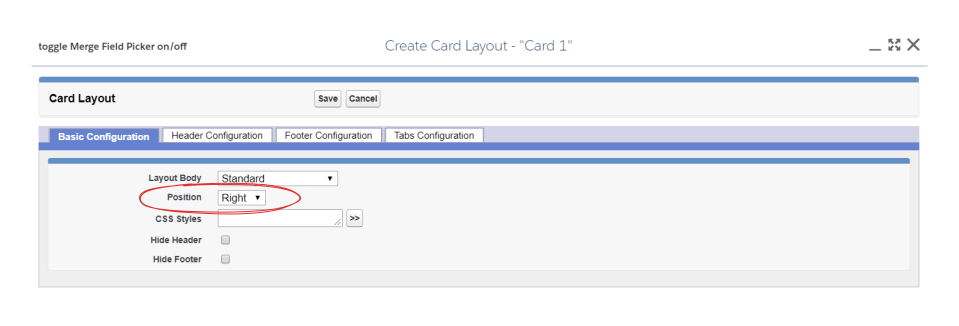 Position "**Right**" will cause layout be shown as right sidebar:
 {% hint style="info" %}
In case if you hid header or footer, you don't need to configure them as described below.
{% endhint %}
### Header Configuration
Go to "**Header Configuration**" tab to open "**Title Settings**".
Fill in "**Text**" field (static text, merge fields or formulas) and configure [CSS Styles](/standard-kanban/tools/configuring-css-styles.md).
{% hint style="info" %}
In case if you hid header or footer, you don't need to configure them as described below.
{% endhint %}
### Header Configuration
Go to "**Header Configuration**" tab to open "**Title Settings**".
Fill in "**Text**" field (static text, merge fields or formulas) and configure [CSS Styles](/standard-kanban/tools/configuring-css-styles.md).
 ### Footer Configuration
Open "**Footer Configuration**" tab and click "**Add Button**" to configure [buttons](/standard-kanban/tools/configuring-rows-cells-menus-and-buttons.md), if needed.
### Footer Configuration
Open "**Footer Configuration**" tab and click "**Add Button**" to configure [buttons](/standard-kanban/tools/configuring-rows-cells-menus-and-buttons.md), if needed.
 Click "**Save**" to apply changes in card layout configuration and save dashboard.
---
# Agent Instructions
This documentation is published with GitBook. GitBook is the documentation platform designed so that both humans and AI agents can read, navigate, and reason over technical content effectively. Learn more at gitbook.com.
## Querying This Documentation
If you need additional information that is not directly available in this page, you can query the documentation dynamically by asking a question.
Perform an HTTP GET request on the current page URL with the `ask` query parameter, and the optional `goal` query parameter:
```
GET https://docs.flexikanban.ai/standard-kanban/configure-card/how-to-configure-card-layout.md?ask=
Click "**Save**" to apply changes in card layout configuration and save dashboard.
---
# Agent Instructions
This documentation is published with GitBook. GitBook is the documentation platform designed so that both humans and AI agents can read, navigate, and reason over technical content effectively. Learn more at gitbook.com.
## Querying This Documentation
If you need additional information that is not directly available in this page, you can query the documentation dynamically by asking a question.
Perform an HTTP GET request on the current page URL with the `ask` query parameter, and the optional `goal` query parameter:
```
GET https://docs.flexikanban.ai/standard-kanban/configure-card/how-to-configure-card-layout.md?ask=