> For the complete documentation index, see [llms.txt](https://docs.flexikanban.ai/llms.txt). Markdown versions of documentation pages are available by appending `.md` to page URLs; this page is available as [Markdown](https://docs.flexikanban.ai/how-to-add-a-kanban-to-navigation-items-panel.md).
# How to add a Kanban to Navigation Items Panel
There are two ways to add a Kanban to Navigation Items panel as a tab:
* Add Kanban to Navigation Items directly - a simple way, but this tab will be visible for the current user only.
* Add Kanban as a Lightning Application - more complex way, but this tab will be available for all users; also, this allows to build a page with different components, even two or more kanbans.
### Add Kanban Directly (**Personalize Navigation Bar)**
1. Open desired Kanban in Kanbans tab
2. Click menu arrow on Kanbans tab to open pop-up menu
3. Click "Open %Kanban\_Name% in New Tab" menu item\
\

4. Kanban will be shown as separate tab. This tab is dynamic and is shown temporary
5. Click menu arrow on this tab to open pop-up menu
6. Click "Add %Kanban\_Name% in Nav Bar" menu item\

7. Voila! Your kanban is in the navigation panel now.
### Add a Lightning App with Kanban
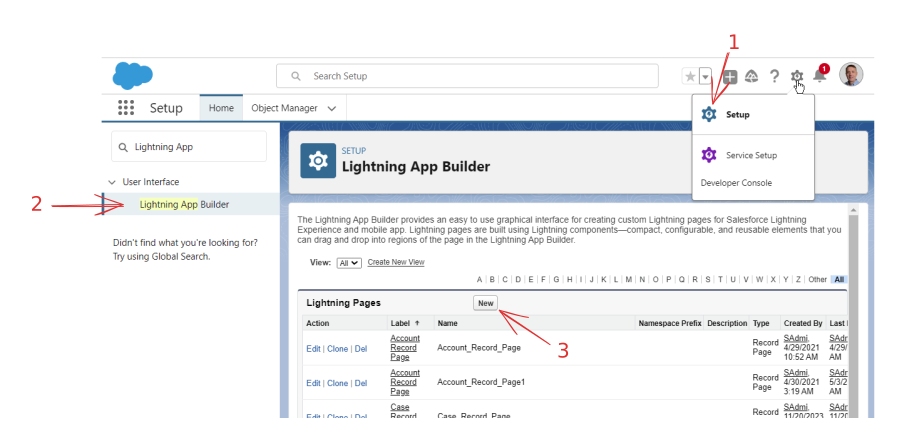
1. Open Setup page
2. Find Lightning App Builder
3. Click "New" button in Lightning Pages list
4. Lightning page builder will be opened and page creation wizard will be shown automatically
5. Select "App Page" and go next
6. Give page a name
7. Select "One Region" layout (of course, you can select something another)
8. Click "Done" button to sow a builder with layout set
 8. Click "Done" button to show a builder with layout set
9. Drag "Flexi KanBan" component to layout region
10. Copy ID of necessary Kanban (e.g., from it's page URL) and paste it into "Kanban ID" field
11. Your kanban will be shown in component layout
8. Click "Done" button to show a builder with layout set
9. Drag "Flexi KanBan" component to layout region
10. Copy ID of necessary Kanban (e.g., from it's page URL) and paste it into "Kanban ID" field
11. Your kanban will be shown in component layout
 12. Save Lightning page
13. Confirm page activation
14. Activate it for all users or system administrators
15. Click "Save". Popup will appear - click "Finish". You will have an access to that page in spite of what system says, because the App builder will add a proper custom tab itself
12. Save Lightning page
13. Confirm page activation
14. Activate it for all users or system administrators
15. Click "Save". Popup will appear - click "Finish". You will have an access to that page in spite of what system says, because the App builder will add a proper custom tab itself
 16. Go to "Tabs" in Setup and scroll down to the Lightning Page Tabs section
17. See that your Lightning page already has own tab created
16. Go to "Tabs" in Setup and scroll down to the Lightning Page Tabs section
17. See that your Lightning page already has own tab created
 Now return to Flexi Kanban application and check Applications and Tabs menu. Your new tab will be there
 Click "Personalize Navigation Bar" button and then click "Add More Items" button in proper popup. Add your new tab there:
 Now it will be available in the navigation bar:
 ---
# Agent Instructions
This documentation is published with GitBook. GitBook is the documentation platform designed so that both humans and AI agents can read, navigate, and reason over technical content effectively. Learn more at gitbook.com.
## Querying This Documentation
If you need additional information that is not directly available in this page, you can query the documentation dynamically by asking a question.
Perform an HTTP GET request on the current page URL with the `ask` query parameter, and the optional `goal` query parameter:
```
GET https://docs.flexikanban.ai/how-to-add-a-kanban-to-navigation-items-panel.md?ask=&goal=
```
`ask` is the immediate question: it should be specific, self-contained, and written in natural language.
`goal` is optional and describes the broader end goal you are ultimately trying to accomplish on behalf of the user. GitBook uses it to tailor the answer towards what is most useful for that goal.
The response will contain a direct answer to the question and relevant excerpts and sources from the documentation.
Use this mechanism when the answer is not explicitly present in the current page, you need clarification or additional context, or you want to retrieve related documentation sections.
---
# Agent Instructions
This documentation is published with GitBook. GitBook is the documentation platform designed so that both humans and AI agents can read, navigate, and reason over technical content effectively. Learn more at gitbook.com.
## Querying This Documentation
If you need additional information that is not directly available in this page, you can query the documentation dynamically by asking a question.
Perform an HTTP GET request on the current page URL with the `ask` query parameter, and the optional `goal` query parameter:
```
GET https://docs.flexikanban.ai/how-to-add-a-kanban-to-navigation-items-panel.md?ask=&goal=
```
`ask` is the immediate question: it should be specific, self-contained, and written in natural language.
`goal` is optional and describes the broader end goal you are ultimately trying to accomplish on behalf of the user. GitBook uses it to tailor the answer towards what is most useful for that goal.
The response will contain a direct answer to the question and relevant excerpts and sources from the documentation.
Use this mechanism when the answer is not explicitly present in the current page, you need clarification or additional context, or you want to retrieve related documentation sections.