> For the complete documentation index, see [llms.txt](https://docs.flexikanban.ai/llms.txt). Markdown versions of documentation pages are available by appending `.md` to page URLs; this page is available as [Markdown](https://docs.flexikanban.ai/components/forms/tools/form-action.md).
# Form Action
### How to add form action.
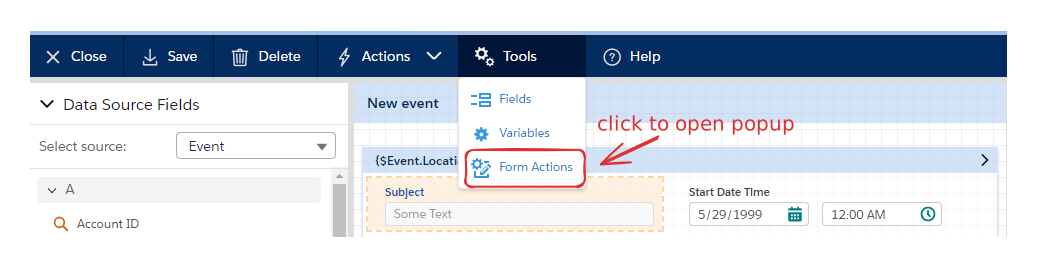
Open "Tools" menu and click "Form Actions".
 Click "Add Action" button in the "Form Actions" popup:
 New action form will appear.
Action has mandatory field "Title" and optional field "Description".
Action can have [conditions](/components/forms/basics/working-with-conditions.md) that should be matched to execute it. Turn checkbox "Has conditions" on to configure conditions.
New action form will appear.
Action has mandatory field "Title" and optional field "Description".
Action can have [conditions](/components/forms/basics/working-with-conditions.md) that should be matched to execute it. Turn checkbox "Has conditions" on to configure conditions.
 You can create form actions of following types:
### "Update Value" action type
Select "Update Value" action type, click "Add" button.
You can create form actions of following types:
### "Update Value" action type
Select "Update Value" action type, click "Add" button.
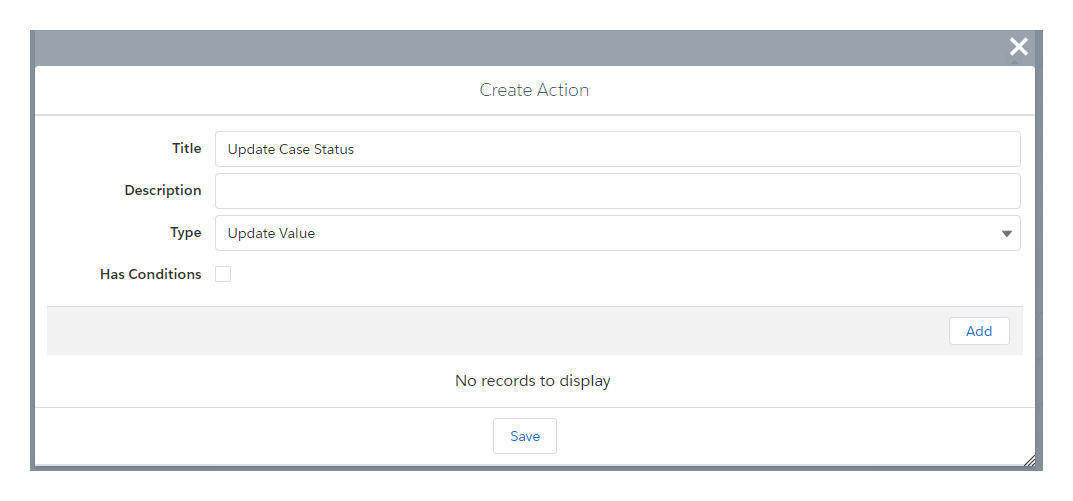 "Update Value" action perform updates of following target entities:
* Form - representing list of form elements that can be updated
* Variables - form variables
* Context - context object of the form (e.g. "Case")
Source of data for the update can be of one of the following types:
* **Parameters** - parameters passed to the action
* **Form** - form elements values
* **Variables** - form variables
* **Context** - context object of the form
* **Static** - static value provided by user
Select target context and field/variable to be updated.
Select source context and field/value to update target with.
"Update Value" action perform updates of following target entities:
* Form - representing list of form elements that can be updated
* Variables - form variables
* Context - context object of the form (e.g. "Case")
Source of data for the update can be of one of the following types:
* **Parameters** - parameters passed to the action
* **Form** - form elements values
* **Variables** - form variables
* **Context** - context object of the form
* **Static** - static value provided by user
Select target context and field/variable to be updated.
Select source context and field/value to update target with.
 ### "KanBan Action" and "KanBan Action Group" action types
"KanBan Action"/"KanBan Action Group" actions trigger action/action group execution and allow you to use the results of execution in form config.
Select proper type in the "Type" picklist and populate other fields:
* Name - click Settings icon and select an action/group.
* Click Arrow icon  to open selected action in new tab (if no action/group is selected yet, an icon will be "+" and will open new action/group creation form).
### "KanBan Action" and "KanBan Action Group" action types
"KanBan Action"/"KanBan Action Group" actions trigger action/action group execution and allow you to use the results of execution in form config.
Select proper type in the "Type" picklist and populate other fields:
* Name - click Settings icon and select an action/group.
* Click Arrow icon  to open selected action in new tab (if no action/group is selected yet, an icon will be "+" and will open new action/group creation form).
 * Source (optional) is the id of the record that is used as a data source for global action. You can set it directly or configure with [merge field](/standard-kanban/tools/using-merge-field-picker.md) constructor (click icon
 ).
* Set variables if you need to pass parameters to global action. Follow the sequence of steps to add and set variables in the popup appeared:
).
* Set variables if you need to pass parameters to global action. Follow the sequence of steps to add and set variables in the popup appeared:
 * Result Handlers are form actions that are executed once action execution is done.
* Click icon
* Result Handlers are form actions that are executed once action execution is done.
* Click icon  to select and configure them (they should be configured at the form first).
 * You can pass parameters to Result Handler actions if necessary - click Settings icon
  for setup. Follow the sequence of steps to add and set parameters in the popup appeared.
{% hint style="info" %}
NOTE: Output context on Parameters Setup screen represents variables that were set while Global Action execution. Config below uses newCaseId variable that was created by Global Action.
{% endhint %}
for setup. Follow the sequence of steps to add and set parameters in the popup appeared.
{% hint style="info" %}
NOTE: Output context on Parameters Setup screen represents variables that were set while Global Action execution. Config below uses newCaseId variable that was created by Global Action.
{% endhint %}
 "KanBan Action Group" form action configuring is same as of "KanBan Action".
* Turn checkbox on to disable spinner that is shown by default while action is executing.
For more information about usage of KanBan Actions and KanBan Action Groups please refer to the following documentation: [Actions/Action Groups](/components/actions-action-groups.md)
### "Refresh" action type
'Refresh' action performs refresh of one of the following form elements:
* Form itself
* Lists
* Related Lists
* Lookups
* Nested Forms
Select "Refresh" action type and select target element of form to be refreshed:
"KanBan Action Group" form action configuring is same as of "KanBan Action".
* Turn checkbox on to disable spinner that is shown by default while action is executing.
For more information about usage of KanBan Actions and KanBan Action Groups please refer to the following documentation: [Actions/Action Groups](/components/actions-action-groups.md)
### "Refresh" action type
'Refresh' action performs refresh of one of the following form elements:
* Form itself
* Lists
* Related Lists
* Lookups
* Nested Forms
Select "Refresh" action type and select target element of form to be refreshed:
 {% hint style="success" %}
About refreshing lookups: this action makes lookup field re-evaluate it's conditions that records are shown by.
E.g., lookup conditions contain a variable that is used to filter records in this lookup. If this variable is updated by user (as a result of some manipulations on current form), an **Refresh** action must be triggered to force Lookup field show records matching new variable value.
{% endhint %}
### "Navigate" action type
Navigate action type allows user to navigate to one of the following resources:
* *URL*
* *Visualforce Page*
* *Record*
* *Form*
* *Lightning Component*
* *Return Back*
Navigate to URL:
* Configure URL to navigate to
* Choose if open in new window
* Pass parameters if necessary
{% hint style="success" %}
About refreshing lookups: this action makes lookup field re-evaluate it's conditions that records are shown by.
E.g., lookup conditions contain a variable that is used to filter records in this lookup. If this variable is updated by user (as a result of some manipulations on current form), an **Refresh** action must be triggered to force Lookup field show records matching new variable value.
{% endhint %}
### "Navigate" action type
Navigate action type allows user to navigate to one of the following resources:
* *URL*
* *Visualforce Page*
* *Record*
* *Form*
* *Lightning Component*
* *Return Back*
Navigate to URL:
* Configure URL to navigate to
* Choose if open in new window
* Pass parameters if necessary
 Navigate to Visualforce Page:
* Select page to navigate to
* Choose if open in new window
* Pass parameters if necessary
Navigate to Visualforce Page:
* Select page to navigate to
* Choose if open in new window
* Pass parameters if necessary
 Navigate to Form:
* Pick the form to navigate to
* Choose form mode
* Pass parameters if necessary
Navigate to Form:
* Pick the form to navigate to
* Choose form mode
* Pass parameters if necessary
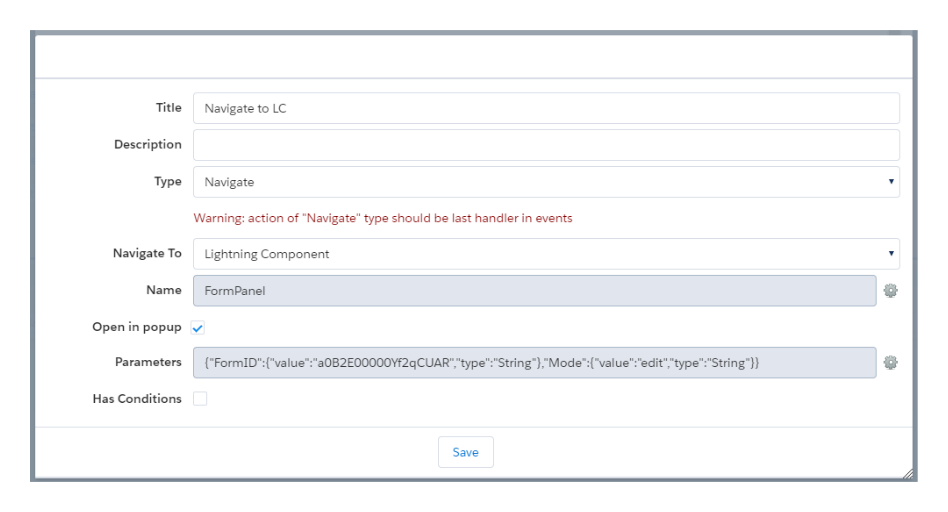
 Navigate to Lightning Component:
* Pick the component to navigate to
* Choose if it should be opened in popup
* Pass parameters if necessary
Navigate to Lightning Component:
* Pick the component to navigate to
* Choose if it should be opened in popup
* Pass parameters if necessary
 Return back:
* Pick "Return Back"
* Specify number of history steps to go back
{% hint style="info" %}
NOTE: this option executes browser `history.back()` function. User should provide 'Browser history steps' value to define how many redirects should be executed. By default 'Browser history back' equals 1. 'Return Back' option also allows user to go to one of the previous forms when working with chained forms.
{% endhint %}
Return back:
* Pick "Return Back"
* Specify number of history steps to go back
{% hint style="info" %}
NOTE: this option executes browser `history.back()` function. User should provide 'Browser history steps' value to define how many redirects should be executed. By default 'Browser history back' equals 1. 'Return Back' option also allows user to go to one of the previous forms when working with chained forms.
{% endhint %}
 ### "Form Api" action type
"Form API" actions execute one of the following methods:
* Save - saves context object
* Reset - resets the original values of all fields in a form
* Clear - removes values from all form inputs
* Show Notification - displays notification to user
* Validate - validates form inputs and shows error if some of them are blank
* Print Form - allows to create a PDF version of the Form, which can be printed
* Fire Event - fires lightning event. It can fire aura application event or force event
* Execute Form Actions - runs action (or group of actions) on the current form/nested form/parent form.
* Close - closes current form
* Calculate - evaluates provided formula expression on server side and retrieves result.
Select necessary method in the "Form Action Type" picklist.
#### Save:
* Check "Disable Validation" checkbox if you need save data that does not match form validation rules.
* Select type of Success Message. If you want to get rid of it, select "None".
* To override default message select "Custom Message" and configure it.
* Configure Extended Fields if needed.
{% hint style="success" %}
Only fields existing in the form will be passed by default onto the server when form is saved. You can add Extended fields - any object fields to be passed and saved in spite of their absence on the form.
{% endhint %}
### "Form Api" action type
"Form API" actions execute one of the following methods:
* Save - saves context object
* Reset - resets the original values of all fields in a form
* Clear - removes values from all form inputs
* Show Notification - displays notification to user
* Validate - validates form inputs and shows error if some of them are blank
* Print Form - allows to create a PDF version of the Form, which can be printed
* Fire Event - fires lightning event. It can fire aura application event or force event
* Execute Form Actions - runs action (or group of actions) on the current form/nested form/parent form.
* Close - closes current form
* Calculate - evaluates provided formula expression on server side and retrieves result.
Select necessary method in the "Form Action Type" picklist.
#### Save:
* Check "Disable Validation" checkbox if you need save data that does not match form validation rules.
* Select type of Success Message. If you want to get rid of it, select "None".
* To override default message select "Custom Message" and configure it.
* Configure Extended Fields if needed.
{% hint style="success" %}
Only fields existing in the form will be passed by default onto the server when form is saved. You can add Extended fields - any object fields to be passed and saved in spite of their absence on the form.
{% endhint %}
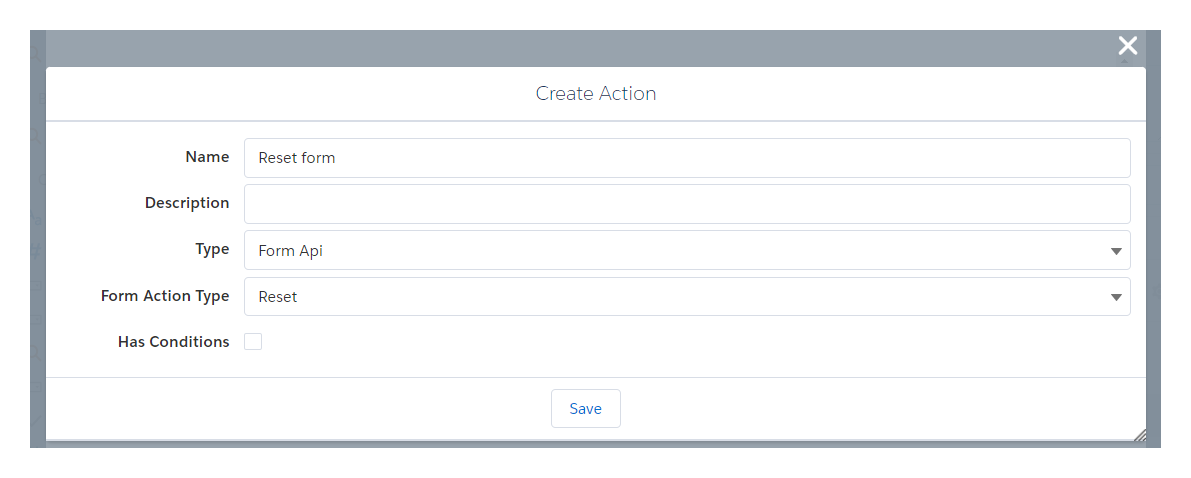
 #### Reset:
* Select Form Action Type "Reset":
#### Reset:
* Select Form Action Type "Reset":
 #### Clear:
* Select Form Action Type "Clear":
#### Clear:
* Select Form Action Type "Clear":
 #### Show Notification:
* Select Notification Type
* Populate or configure "Title" and "Text"
#### Show Notification:
* Select Notification Type
* Populate or configure "Title" and "Text"
 #### Validate:
* Select where validation should be performed.
* Configure "Message" if you need to inform users.
#### Validate:
* Select where validation should be performed.
* Configure "Message" if you need to inform users.
 #### Fire Event:
* Populate Event name (in namespace:name format).
* Specify event parameters.
#### Fire Event:
* Populate Event name (in namespace:name format).
* Specify event parameters.
 #### Execute Form Actions:
* Specify Timeout - it is optional setting to delay form action execution.
* Select "Form" and click "Add" button.
* Based on what form is selected (current form or nested form), "Action" will display list of current form actions or nested form actions.
* Configure parameters if needed.
* If you check "All Forms"- you can execute action from any form in your organization.
#### Execute Form Actions:
* Specify Timeout - it is optional setting to delay form action execution.
* Select "Form" and click "Add" button.
* Based on what form is selected (current form or nested form), "Action" will display list of current form actions or nested form actions.
* Configure parameters if needed.
* If you check "All Forms"- you can execute action from any form in your organization.
 #### Close:
* Select Form Action Type "Close":
#### Close:
* Select Form Action Type "Close":
 #### Calculate Form Actions:
Calculate action example:
* Configure calculation expressions. Specify output variable name and expression which evaluation result will be a value of output variable. You can configure several output variables.
* Results of calculations should be passed to some other action (result handler).
#### Calculate Form Actions:
Calculate action example:
* Configure calculation expressions. Specify output variable name and expression which evaluation result will be a value of output variable. You can configure several output variables.
* Results of calculations should be passed to some other action (result handler).

 Handler action updates form field with the calculation result:
 ### "KanBan API" action type
"Kanban API" actions at the form are available only for the following methods:
* Refresh Kanbans
* Update Variables
* Print Kanban
* Hide Kanban
* Show Kanban
* Navigate to Kanban
* Refresh Columns
* Refresh Columns Header
* Refresh Column Footer
* Hide columns
* Show Columns
* Refresh card
* Refresh Card Layout
* Hide Card Layout
* Show Card Layout
* Refresh Cell
* Update Cell
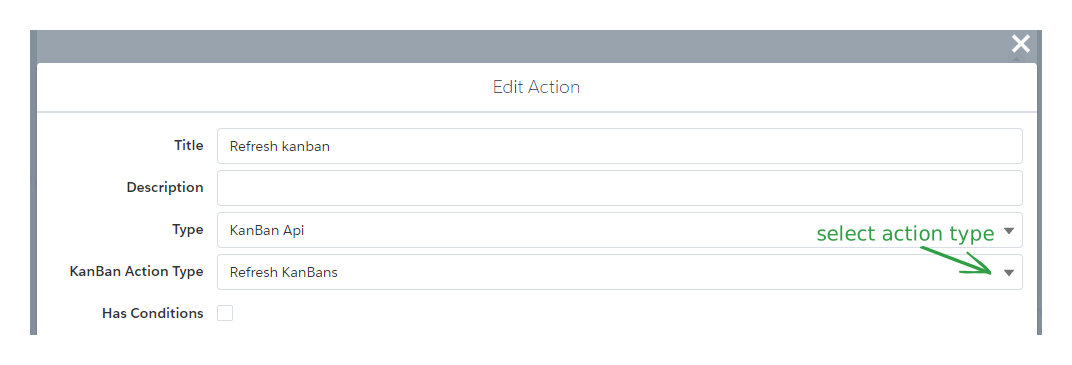
First select proper method in "Kanban Action Type" picklist:
### "KanBan API" action type
"Kanban API" actions at the form are available only for the following methods:
* Refresh Kanbans
* Update Variables
* Print Kanban
* Hide Kanban
* Show Kanban
* Navigate to Kanban
* Refresh Columns
* Refresh Columns Header
* Refresh Column Footer
* Hide columns
* Show Columns
* Refresh card
* Refresh Card Layout
* Hide Card Layout
* Show Card Layout
* Refresh Cell
* Update Cell
First select proper method in "Kanban Action Type" picklist:
 See below how to configure Kanban API methods in the form:
#### Refresh Kanbans
* Add kanban(s) to be refreshed (more than one kanban can be refreshed with one action)
* Specify parts of kanban(s) that should be refreshed
See below how to configure Kanban API methods in the form:
#### Refresh Kanbans
* Add kanban(s) to be refreshed (more than one kanban can be refreshed with one action)
* Specify parts of kanban(s) that should be refreshed
 #### Update Variables
* Select kanban where variables should be updated in
* Add and configure variables and their values
#### Update Variables
* Select kanban where variables should be updated in
* Add and configure variables and their values
 #### Print Kanban
* Add kanban(s) to be printed (more than one kanban can be printed with one action)
#### Print Kanban
* Add kanban(s) to be printed (more than one kanban can be printed with one action)
 #### Hide Kanban
* Add Kanban Junction(s) to be hidden (more than one junction can be hidden with one action)
#### Hide Kanban
* Add Kanban Junction(s) to be hidden (more than one junction can be hidden with one action)
 Kanban Junctions show which kanbans are children of which parents (this is suitable for composite kanbans). Hiding proper junction will cause child kanban disappear from the parent.
* Click "Settings" icon to show Junction selector.
* Select necessary junction and
* Click "Apply" button:
Kanban Junctions show which kanbans are children of which parents (this is suitable for composite kanbans). Hiding proper junction will cause child kanban disappear from the parent.
* Click "Settings" icon to show Junction selector.
* Select necessary junction and
* Click "Apply" button:
 #### Show Kanban
* Add Kanban Junction(s) to be shown (more than one junction can be shown with one action)
#### Show Kanban
* Add Kanban Junction(s) to be shown (more than one junction can be shown with one action)
 #### Navigate to Kanban
* Select kanban to be shown
* Add and configure target kanban variables and their values
#### Navigate to Kanban
* Select kanban to be shown
* Add and configure target kanban variables and their values
 #### Refresh Columns
* Select kanban to refresh columns in
* Add columns to be refreshed
* Specify which parts of columns should be refreshed
#### Refresh Columns
* Select kanban to refresh columns in
* Add columns to be refreshed
* Specify which parts of columns should be refreshed
 #### Refresh Columns Header and Refresh Columns Footer
* Select kanban to refresh columns in
* Add columns whose headers or footers are to be refreshed
#### Refresh Columns Header and Refresh Columns Footer
* Select kanban to refresh columns in
* Add columns whose headers or footers are to be refreshed
 #### Hide Columns and Show Columns
* Select kanban to hide or show columns in
* Add columns that should be hidden or shown
#### Hide Columns and Show Columns
* Select kanban to hide or show columns in
* Add columns that should be hidden or shown
 #### Refresh Card
* Add kanban(s) to be refresh cards in (cards in more than one kanban can be refreshed with one action)
* Add columns which contain cards that will be refreshed (because one record can be represented by several cards in several columns)
* Configure ID of the record which card(s) will be refreshed for
#### Refresh Card
* Add kanban(s) to be refresh cards in (cards in more than one kanban can be refreshed with one action)
* Add columns which contain cards that will be refreshed (because one record can be represented by several cards in several columns)
* Configure ID of the record which card(s) will be refreshed for
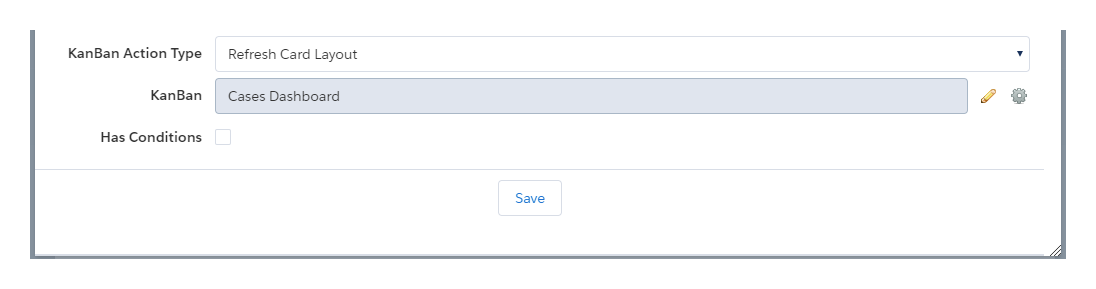
 #### Refresh Card Layout or Hide Card Layout
* Select kanban to refresh or hide card layout in
#### Refresh Card Layout or Hide Card Layout
* Select kanban to refresh or hide card layout in
 #### Show Card Layout
* Select kanban to refresh or hide card layout in
* Select column to show card layout for
* Configure ID of the record which layout should be shown
#### Show Card Layout
* Select kanban to refresh or hide card layout in
* Select column to show card layout for
* Configure ID of the record which layout should be shown
 #### Refresh cell
* Configure [cell ID](/standard-kanban/tools/configuring-rows-cells-menus-and-buttons.md#cells)
* Configure column ID if needed (this parameter can be omitted if user wants to refresh cells in a proper card, header or footer in all columns)
* Configure record ID to specify which card cell should be refreshed in. This parameter is optional (e.g., if user wants to refresh cell in all cards or if cell does not belong to any card).
#### Refresh cell
* Configure [cell ID](/standard-kanban/tools/configuring-rows-cells-menus-and-buttons.md#cells)
* Configure column ID if needed (this parameter can be omitted if user wants to refresh cells in a proper card, header or footer in all columns)
* Configure record ID to specify which card cell should be refreshed in. This parameter is optional (e.g., if user wants to refresh cell in all cards or if cell does not belong to any card).
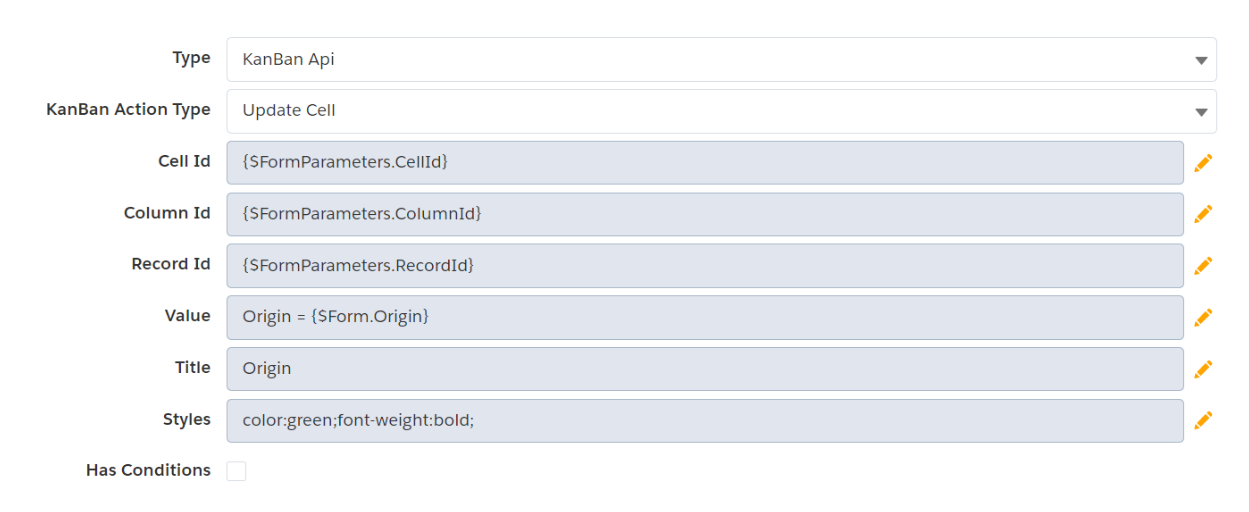
 #### Update cell
* Configure [cell ID](/standard-kanban/tools/configuring-rows-cells-menus-and-buttons.md#cells)
* Configure column ID if needed (this parameter can be omitted if user wants to update cells in a proper card, header or footer in all columns)
* Configure record ID to specify which card cell should be updated in. This parameter is optional (e.g., if user wants to update cell in all cards or if cell does not belong to any card).
* Configure the cell value that should be updated
* Configure the cell title that should be updated (optional parameter)
* Configure the cell styles in CSS format that should be updated (optional parameter)
#### Update cell
* Configure [cell ID](/standard-kanban/tools/configuring-rows-cells-menus-and-buttons.md#cells)
* Configure column ID if needed (this parameter can be omitted if user wants to update cells in a proper card, header or footer in all columns)
* Configure record ID to specify which card cell should be updated in. This parameter is optional (e.g., if user wants to update cell in all cards or if cell does not belong to any card).
* Configure the cell value that should be updated
* Configure the cell title that should be updated (optional parameter)
* Configure the cell styles in CSS format that should be updated (optional parameter)
 ---
# Agent Instructions
This documentation is published with GitBook. GitBook is the documentation platform designed so that both humans and AI agents can read, navigate, and reason over technical content effectively. Learn more at gitbook.com.
## Querying This Documentation
If you need additional information that is not directly available in this page, you can query the documentation dynamically by asking a question.
Perform an HTTP GET request on the current page URL with the `ask` query parameter, and the optional `goal` query parameter:
```
GET https://docs.flexikanban.ai/components/forms/tools/form-action.md?ask=&goal=
```
`ask` is the immediate question: it should be specific, self-contained, and written in natural language.
`goal` is optional and describes the broader end goal you are ultimately trying to accomplish on behalf of the user. GitBook uses it to tailor the answer towards what is most useful for that goal.
The response will contain a direct answer to the question and relevant excerpts and sources from the documentation.
Use this mechanism when the answer is not explicitly present in the current page, you need clarification or additional context, or you want to retrieve related documentation sections.
---
# Agent Instructions
This documentation is published with GitBook. GitBook is the documentation platform designed so that both humans and AI agents can read, navigate, and reason over technical content effectively. Learn more at gitbook.com.
## Querying This Documentation
If you need additional information that is not directly available in this page, you can query the documentation dynamically by asking a question.
Perform an HTTP GET request on the current page URL with the `ask` query parameter, and the optional `goal` query parameter:
```
GET https://docs.flexikanban.ai/components/forms/tools/form-action.md?ask=&goal=
```
`ask` is the immediate question: it should be specific, self-contained, and written in natural language.
`goal` is optional and describes the broader end goal you are ultimately trying to accomplish on behalf of the user. GitBook uses it to tailor the answer towards what is most useful for that goal.
The response will contain a direct answer to the question and relevant excerpts and sources from the documentation.
Use this mechanism when the answer is not explicitly present in the current page, you need clarification or additional context, or you want to retrieve related documentation sections.