> For the complete documentation index, see [llms.txt](https://docs.flexikanban.ai/llms.txt). Markdown versions of documentation pages are available by appending `.md` to page URLs; this page is available as [Markdown](https://docs.flexikanban.ai/components/actions-action-groups/basics/working-with-actions.md).
# Working with Actions
### How to create Action
* Go to Actions tab and press "New" button .
 * "New KanBan Action" page will be shown. Provide Action **Name**, choose **Context Objec**t, **Type** and **Status** (active or inactive).
* Check "With conditions" if needed to execute actions not always. Set up Conditions in the section that will be shown below.
* When Action Type is selected, a **Settings** section (it's actual header depends on selected Action Type) will be shown below. Configure the action settings based on its type and press "**Save**" button.
* "New KanBan Action" page will be shown. Provide Action **Name**, choose **Context Objec**t, **Type** and **Status** (active or inactive).
* Check "With conditions" if needed to execute actions not always. Set up Conditions in the section that will be shown below.
* When Action Type is selected, a **Settings** section (it's actual header depends on selected Action Type) will be shown below. Configure the action settings based on its type and press "**Save**" button.

 ### Working with existing Action
After the action is created new set of functionality becomes available.
### Working with existing Action
After the action is created new set of functionality becomes available.
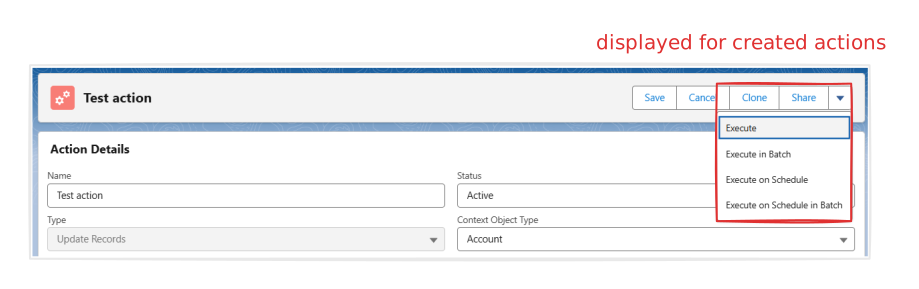 #### Clone
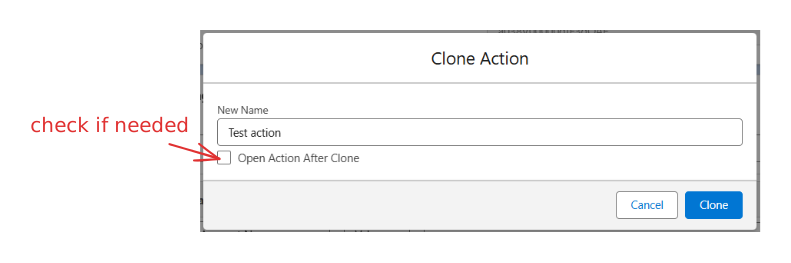
Allows to clone the Action.
* Click "**Clone**" button to open popup.
* Enter **New Name**,
* Check "**Open Action After Clone**" if needed and click "**Clone**" button.
#### Clone
Allows to clone the Action.
* Click "**Clone**" button to open popup.
* Enter **New Name**,
* Check "**Open Action After Clone**" if needed and click "**Clone**" button.
 #### Share
Allows to share the Action to Users, Roles, Roles and Subordinates, Public Groups.
* Click "**Share**" button.
* Add Users/Groups/Roles to whom you want to share.
* Select Access Level: **Read Only** or **Read** **and** **Write**.
* Click "**Save**" button.
#### Share
Allows to share the Action to Users, Roles, Roles and Subordinates, Public Groups.
* Click "**Share**" button.
* Add Users/Groups/Roles to whom you want to share.
* Select Access Level: **Read Only** or **Read** **and** **Write**.
* Click "**Save**" button.
 #### Execute
Allows to execute action.
* Click "**Execute**" button.
* Add **Source -** Id of the record for which action should be executed (*is shown only if select context object type*).
* Add **Variables** if needed.
* Click **Apply** button.
#### Execute
Allows to execute action.
* Click "**Execute**" button.
* Add **Source -** Id of the record for which action should be executed (*is shown only if select context object type*).
* Add **Variables** if needed.
* Click **Apply** button.
 #### Execute in Batch
Allows to execute action in batch for specified query.
* Click "**Execute in Batch"** button.
* **Query** - scope of records for which you need to run the action in batch. Query is a SOQL query which should define the list of source records (see [**SF SOQL query**](https://developer.salesforce.com/docs/atlas.en-us.soql_sosl.meta/soql_sosl/sforce_api_calls_soql.htm?_ga=2.51528096.866170717.1737723674-134945425.1729792369) language).
* **Batch Size** - is the size of the batch job iteration. E.g., if Query returns 46 records and Batch size = 10, system will start the batch job iteration 5 times.
* If "**In Single Call**?" is turned on, the batch job iteration will execute action 1 time and pass it IDs of records in the "ids" variable. If "In Single Call?" is off, the batch job iteration will execute action for each record, passing it's record ID each time.
* When "In Single Call?" is off, a "**Pass Source?**" checkbox becomes available. If it is turned on, the record will be passed to action as a Source object, which properties action author can work with. If "Pass Source?" is off, the record ID will be passed to action in the "recordId" variable and action author should configure it's usage itself.
* Add **Variables** if needed.
* Click **Apply** button.
#### Execute in Batch
Allows to execute action in batch for specified query.
* Click "**Execute in Batch"** button.
* **Query** - scope of records for which you need to run the action in batch. Query is a SOQL query which should define the list of source records (see [**SF SOQL query**](https://developer.salesforce.com/docs/atlas.en-us.soql_sosl.meta/soql_sosl/sforce_api_calls_soql.htm?_ga=2.51528096.866170717.1737723674-134945425.1729792369) language).
* **Batch Size** - is the size of the batch job iteration. E.g., if Query returns 46 records and Batch size = 10, system will start the batch job iteration 5 times.
* If "**In Single Call**?" is turned on, the batch job iteration will execute action 1 time and pass it IDs of records in the "ids" variable. If "In Single Call?" is off, the batch job iteration will execute action for each record, passing it's record ID each time.
* When "In Single Call?" is off, a "**Pass Source?**" checkbox becomes available. If it is turned on, the record will be passed to action as a Source object, which properties action author can work with. If "Pass Source?" is off, the record ID will be passed to action in the "recordId" variable and action author should configure it's usage itself.
* Add **Variables** if needed.
* Click **Apply** button.
 #### Execute on Schedule
Allows to schedule execution of the action.
* Click "**Execute on Schedule"** button.
* Enter **Schedule Job Name** .
* **Cron** - Salesforce [cron expression](https://help.salesforce.com/s/articleView?id=analytics.reports_subscription_reporting_cron.htm\&type=5) which sets schedule of job runs - see more details at Salesforce help.
* **Source** - Id of the record for which action should be executed.
* Add **Variables** if needed.
* Click **Apply** button.
#### Execute on Schedule
Allows to schedule execution of the action.
* Click "**Execute on Schedule"** button.
* Enter **Schedule Job Name** .
* **Cron** - Salesforce [cron expression](https://help.salesforce.com/s/articleView?id=analytics.reports_subscription_reporting_cron.htm\&type=5) which sets schedule of job runs - see more details at Salesforce help.
* **Source** - Id of the record for which action should be executed.
* Add **Variables** if needed.
* Click **Apply** button.
 #### Execute on Schedule in Batch
Allows to schedule execution of the action in batch for specified query.
* Click E**xecute on Schedule in Batch** button.
* Enter **Schedule Job Name**.
* **Cron** - Salesforce [cron expression](https://help.salesforce.com/s/articleView?id=analytics.reports_subscription_reporting_cron.htm\&type=5) which sets schedule of job runs - see more details at Salesforce help.
* **Query** - scope of records for which you need to run the action in batch. Query is a SOQL query which should define the list of source records (see [**SF SOQL query**](https://developer.salesforce.com/docs/atlas.en-us.soql_sosl.meta/soql_sosl/sforce_api_calls_soql.htm?_ga=2.51528096.866170717.1737723674-134945425.1729792369) language).
* **Batch Size** - is the size of the batch job iteration. E.g., if Query returns 46 records and Batch size = 10, system will start the batch job iteration 5 times.
* If "**In Single Call**?" is turned on, the batch job iteration will execute action 1 time and pass it IDs of records in the "ids" variable. If "In Single Call?" is off, the batch job iteration will execute action for each record, passing it's record ID each time.
* When "In Single Call?" is off, a "**Pass Source?**" checkbox becomes available. If it is turned on, the record will be passed to action as a Source object, which properties action author can work with. If "Pass Source?" is off, the record ID will be passed to action in the "recordId" variable and action author should configure it's usage itself.
* Add **Variables** if needed.
* Click **Apply** button.
#### Execute on Schedule in Batch
Allows to schedule execution of the action in batch for specified query.
* Click E**xecute on Schedule in Batch** button.
* Enter **Schedule Job Name**.
* **Cron** - Salesforce [cron expression](https://help.salesforce.com/s/articleView?id=analytics.reports_subscription_reporting_cron.htm\&type=5) which sets schedule of job runs - see more details at Salesforce help.
* **Query** - scope of records for which you need to run the action in batch. Query is a SOQL query which should define the list of source records (see [**SF SOQL query**](https://developer.salesforce.com/docs/atlas.en-us.soql_sosl.meta/soql_sosl/sforce_api_calls_soql.htm?_ga=2.51528096.866170717.1737723674-134945425.1729792369) language).
* **Batch Size** - is the size of the batch job iteration. E.g., if Query returns 46 records and Batch size = 10, system will start the batch job iteration 5 times.
* If "**In Single Call**?" is turned on, the batch job iteration will execute action 1 time and pass it IDs of records in the "ids" variable. If "In Single Call?" is off, the batch job iteration will execute action for each record, passing it's record ID each time.
* When "In Single Call?" is off, a "**Pass Source?**" checkbox becomes available. If it is turned on, the record will be passed to action as a Source object, which properties action author can work with. If "Pass Source?" is off, the record ID will be passed to action in the "recordId" variable and action author should configure it's usage itself.
* Add **Variables** if needed.
* Click **Apply** button.
 ---
# Agent Instructions
This documentation is published with GitBook. GitBook is the documentation platform designed so that both humans and AI agents can read, navigate, and reason over technical content effectively. Learn more at gitbook.com.
## Querying This Documentation
If you need additional information that is not directly available in this page, you can query the documentation dynamically by asking a question.
Perform an HTTP GET request on the current page URL with the `ask` query parameter, and the optional `goal` query parameter:
```
GET https://docs.flexikanban.ai/components/actions-action-groups/basics/working-with-actions.md?ask=&goal=
```
`ask` is the immediate question: it should be specific, self-contained, and written in natural language.
`goal` is optional and describes the broader end goal you are ultimately trying to accomplish on behalf of the user. GitBook uses it to tailor the answer towards what is most useful for that goal.
The response will contain a direct answer to the question and relevant excerpts and sources from the documentation.
Use this mechanism when the answer is not explicitly present in the current page, you need clarification or additional context, or you want to retrieve related documentation sections.
---
# Agent Instructions
This documentation is published with GitBook. GitBook is the documentation platform designed so that both humans and AI agents can read, navigate, and reason over technical content effectively. Learn more at gitbook.com.
## Querying This Documentation
If you need additional information that is not directly available in this page, you can query the documentation dynamically by asking a question.
Perform an HTTP GET request on the current page URL with the `ask` query parameter, and the optional `goal` query parameter:
```
GET https://docs.flexikanban.ai/components/actions-action-groups/basics/working-with-actions.md?ask=&goal=
```
`ask` is the immediate question: it should be specific, self-contained, and written in natural language.
`goal` is optional and describes the broader end goal you are ultimately trying to accomplish on behalf of the user. GitBook uses it to tailor the answer towards what is most useful for that goal.
The response will contain a direct answer to the question and relevant excerpts and sources from the documentation.
Use this mechanism when the answer is not explicitly present in the current page, you need clarification or additional context, or you want to retrieve related documentation sections.